My Qidi Q1 Pro was originally running a very old stack of Klipper, Moonraker and operating system, so when I needed new features not available on such an old stack, I decided to upgrade the printer to FreeDi, an alternative stack with support for the integrated display, otherwise not supported by Klipper natively.
The procedure was simple enough, but the old Moonraker was saving all data into data.mdb and lock.mdb (a LMDB database which is architecture specific!), while the newest release uses a SQLite database.
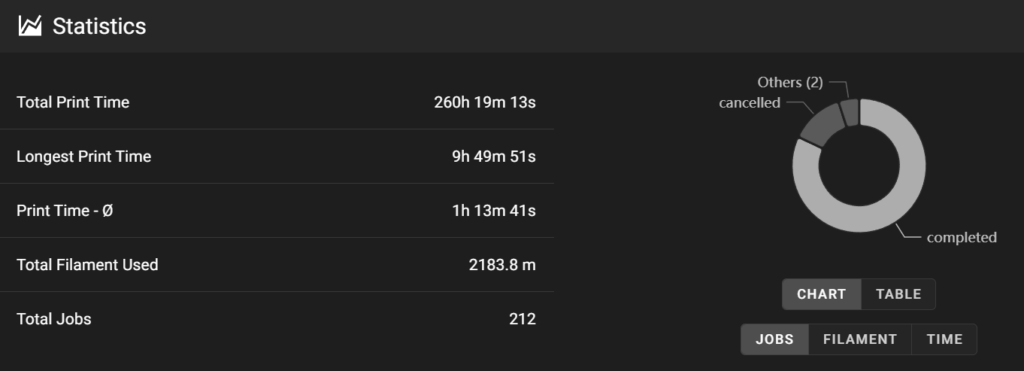
Upgrading the printer to FreeDi involved losing all the printer statistics and job history, which I didn’t like.
The new Moonraker was already configured by the maintainer of FreeDi with macros grouped according to need, and with the interface already configured. I didn’t want to lose this configuration either.
The steps to import the old print history and statistics into the new database are as follows:
- Recover
data.mdbandlock.mdbfrom a backup you should have performed before upgrading to FreeDi - Stop moonraker:
sudo service moonraker stop - Rename
moonraker-sql.dbusing SSH tomoonraker-sql-new.db, which is found in/home/mks/printer_data/database - Download it to a local computer
- Upload
data.mdbandlock.mdbto/home/mks/printer_data/database - Start and the stop Moonraker:
sudo service moonraker start && sudo service moonraker stop - Download
moonraker-sql.dbto a local computer - Using “DB Browser for SQLite” export the tables
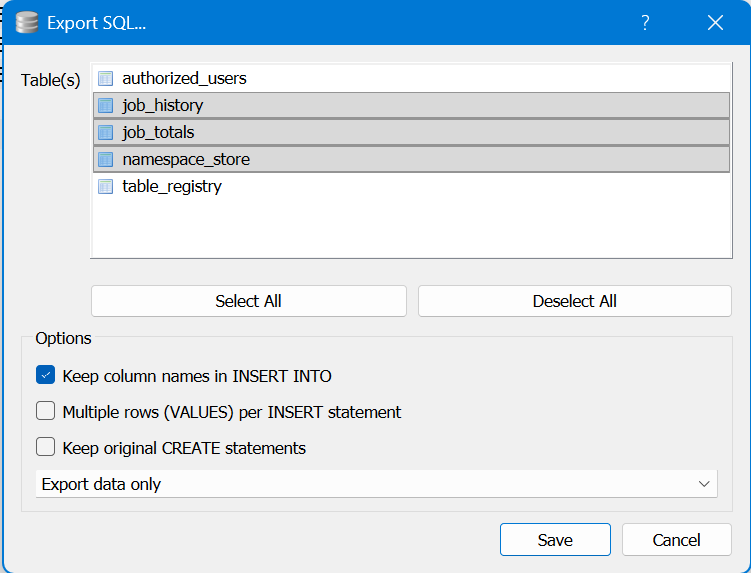
job_history,job_totals,namespace_storein SQL format with the options “Keep column names…” and “Export data only”, see image below. - Close the file and delete it.
- Open the exported SQL file and delete the lines except for those which are needed for the history, then save. See the following excerpt:
BEGIN TRANSACTION;
INSERT INTO "job_history" …
…
INSERT INTO "job_totals" …
…
INSERT INTO "namespace_store" ("namespace","key","value") VALUES ('gcode_metadata',…
…
COMMIT; - Open
moonraker-sql-new.dbwith “DB Browser for SQLite” and delete all records from the tablejob_totals - Import the SQL file previously edited.
- Save and rename to
moonraker-sql.db - Upload to FreeDi replacing the existing one
- Start moonraker:
sudo service moonraker start
Moonraker will have now full history: